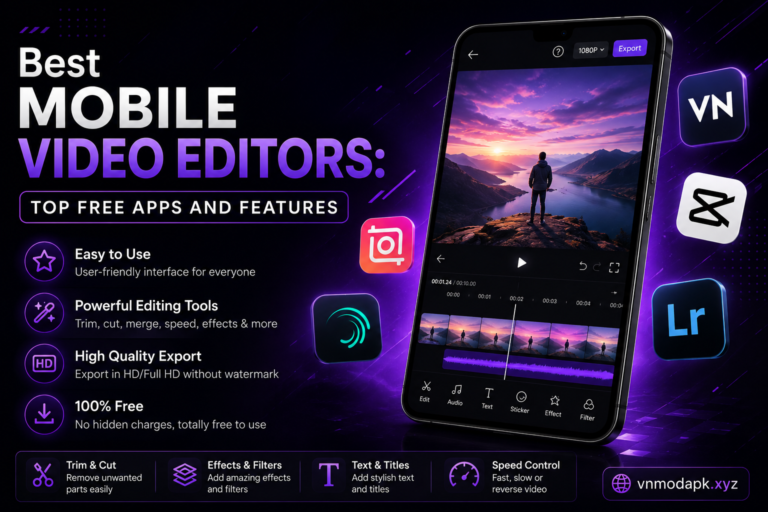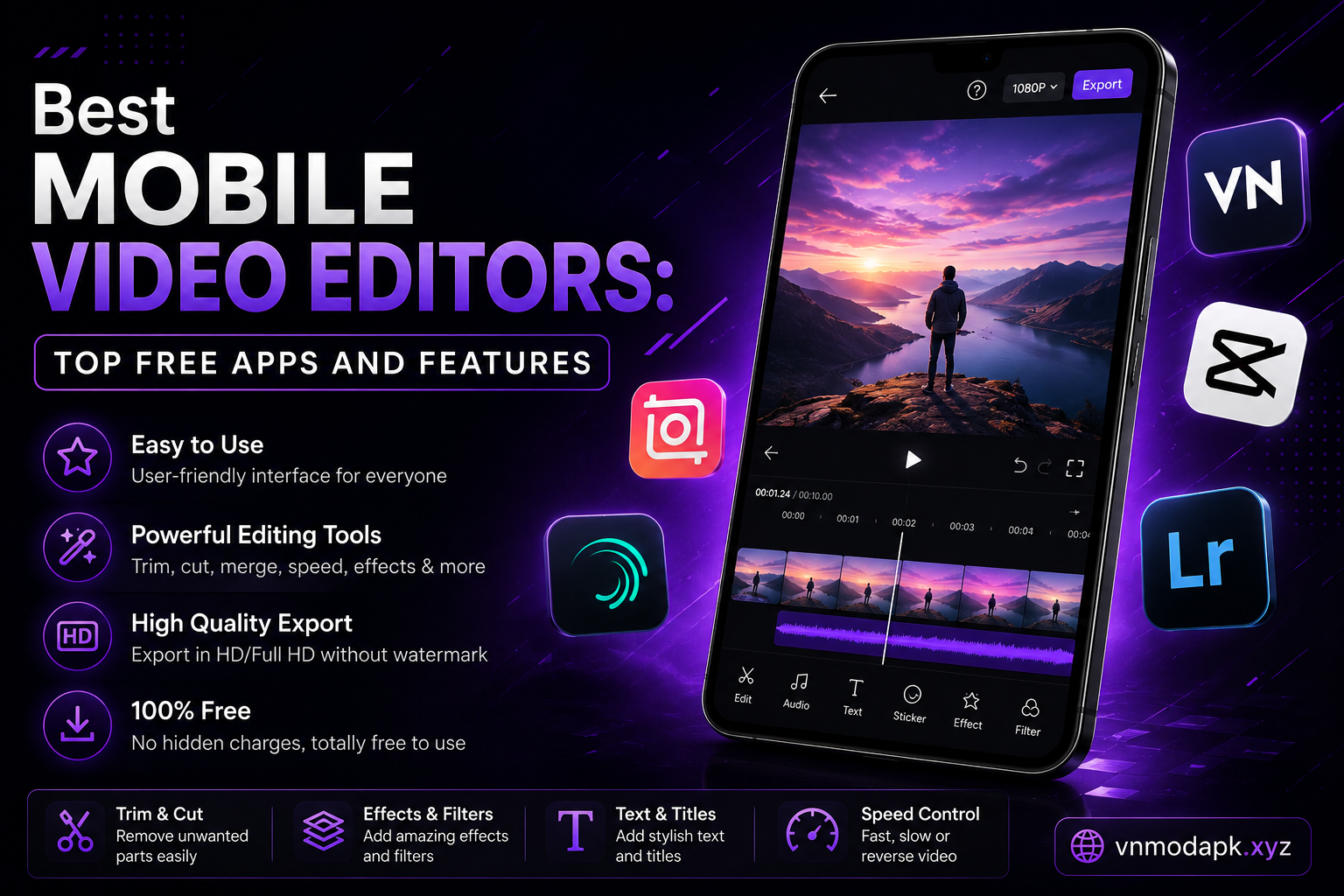
Best Mobile Video Editors: Top Free Apps and Features
Smartphones have transformed content creation. With high-resolution cameras shooting in 4K and multi-lens setups, your phone is a complete production studio. However, raw footage needs polishing before it is ready for TikTok, Instagram Reels, YouTube Shorts, or personal archives.
Choosing the right mobile video editor determines how easily you can trim clips, apply transitions, add trending music, and export crisp HD content without annoying watermarks. Whether you need a simple mobile phone video editor for quick cuts or a multi-track timeline for complex stories, plenty of powerful options exist.
This guide covers the best mobile video editor choices, compares feature sets, breaks down free vs. paid tiers, and highlights how to edit on your smartphone without sacrificing quality.
Key Features of a Great Mobile Phone Video Editor
When searching for the best mobile video editor, do not rely on app store ratings alone. Look for specific features that directly impact your editing speed and output quality:
Multi-Track Timeline: The ability to stack video clips, audio tracks, text overlays, and picture-in-picture (PiP) graphics on separate layers.
No-Watermark Exports: Nothing ruins a finished project faster than a large corporate logo stamped over your footage.
Precision Trimming & Keyframing: Frame-accurate cuts and keyframe support for smooth pan-and-zoom animations.
Audio & Music Controls: Built-in royalty-free sound libraries, voiceover recording, noise reduction, and automatic audio ducking.
AI Assistance: Auto-captions, background removal without a green screen, smart motion tracking, and speed ramping presets.
Performance & Stability: Fast rendering speeds that run smoothly without crashing or draining your phone battery mid-edit.
About:
Top best Mobile Video Editor Apps Breakdown
To help you find the right video editor app mobile solution, here is an in-depth breakdown of the leading applications available today.
1. CapCut – Best All-Rounder for Social Media Creators
CapCut is widely recognized as the most popular mobile video editing apps choice for short-form video creators. Developed by ByteDance, it integrates seamlessly with viral social media trends and offers intuitive multi-track editing.
Key Strengths: Auto-captions in multiple languages, one-tap background removal, speed ramping curves, keyframe controls, and thousands of trending effects.
Watermark Policy: Free exports do not include a permanent forced watermark. An optional ending slide featuring the CapCut logo is added by default, but you can delete it from the timeline with one tap before exporting.
Best For: TikTok, Instagram Reels, and YouTube Shorts creators who want fast, trendy edits.
2. VN Video Editor – Best Free Mobile Video Editor No Watermark
If you want a professional-grade timeline without spending money or dealing with paywalls, VN Video Editor is an outstanding best mobile video editor free option. It feels like desktop software scaled down for touchscreens.
Key Strengths: Full multi-track timeline, curve speed adjustment, customizable title templates, green screen chroma key, color grading LUT support, and precise audio waveform editing.
Watermark Policy: 100% free with no forced watermarks on export.
Best For: Creators looking for a clean, pro-style video editor mobile without watermark restrictions.
3. InShot – Best for Fast Edits & Beginners
InShot is a staple best free mobile video editor for beginners who want simple controls without feeling overwhelmed by complex timelines.
Key Strengths: Canvas resizing for instantly adjusting videos to 9:16, 1:1, or 16:9 aspect ratios. Includes text overlays, filters, speed control, voiceovers, and reaction-style Picture-in-Picture.
Watermark Policy: The free version places a small watermark in the corner, but you can remove it per export by watching a brief ad.
Best For: Casual social media users and quick image-to-video slideshows.
4. LumaFusion – Best Desktop-Grade Power for iOS & Android
LumaFusion is a paid powerhouse designed for mobile filmmakers, journalists, and serious editors who need desktop-class features on a tablet or mobile phone.
Key Strengths: Up to 6 video/audio tracks and 6 additional audio tracks, advanced color scopes, keyframe animation, external drive editing support, and native XML export to desktop suites like Final Cut Pro.
Watermark Policy: One-time purchase with zero watermarks or subscription tiers.
Best For: Professional mobile filmmakers, vloggers, and iPad/Android tablet power users.
5. KineMaster – Feature-Packed Traditional Timeline
KineMaster offers a horizontal, layer-based workflow that mimics traditional video editing software on desktop computers.
Key Strengths: Multi-layer video blending, chroma keying for green screen effects, speed controls, 4K export support, and an extensive asset store for fonts and transitions.
Watermark Policy: Free exports contain a watermark; removing it requires a KineMaster Premium subscription.
Best For: Landscape YouTube videos and creators who prefer a traditional horizontal editing layout.
best Mobile Video Editor Apps Comparison
This table evaluates top options to help you choose the best video editor app mobile solution for your hardware and budget:
App Name
Supported OS
Watermark on Free Tier?
Best Primary Use Case
Difficulty Level
CapCut
iOS, Android
Removable ending clip
Short-form Reels & TikToks
Beginner to Intermediate
VN Video Editor
iOS, Android
None (100% Free)
Pro timeline cuts & Vlogs
Intermediate
InShot
iOS, Android
Removable via short ad
Quick canvas formatting
Beginner
LumaFusion
iOS, Android
None (Paid App)
Multi-track pro projects
Advanced
KineMaster
iOS, Android
Yes (Requires Sub)
Horizontal YouTube videos
Intermediate
Adobe Premiere Rush
iOS, Android
None (Free export limits)
Cross-device Adobe sync
Beginner to Intermediate
Apple iMovie
iOS only
None (100% Free)
Quick edits on Apple devices
Beginner
How to Edit Mobile Videos Without Watermarks
Finding a reliable best mobile video editor free tool without a forced logo overlay can be frustrating. Many apps allow you to build an entire project only to demand payment at the export screen.
To keep your exports clean without paying subscriptions:
Use Genuinely Free Editors: Software like VN Video Editor and Apple iMovie never append watermarks to exported files.
Delete Ending Credit Clips: Applications like CapCut automatically attach a 2-second branded outro to the end of every timeline. Select that last clip on your timeline and press Delete before tapping export.
Watch Reward Ads: Apps like InShot allow free users to remove the watermark on a single project by tapping the “X” on the watermark badge and watching a 15-to-30-second ad video.
Avoid Modded APKs: Never install unauthorized or hacked app files from third-party sites promising unlocked pro features. These files often contain malware that compromises your phone’s security and personal data. Stick to verified app store downloads.
Using a Mobile Video Editor Online (Browser-Based)
If your phone is low on internal storage space or you prefer not to install dedicated software, you can use a mobile video editor online directly inside mobile WebKit browsers like Chrome or Safari.
Canva Video Mobile: Canva’s mobile browser layout lets you assemble clips using drag-and-drop social media templates, stock music, and animated text banners without taking up phone storage.
CapCut Web for Mobile: CapCut offers a browser-based interface accessible via tablet or phone browsers, synchronizing cloud storage across all your devices.
Adobe Express Mobile Web: Great for fast social media trims, video-to-GIF conversions, and quick captioning without downloading standalone editing software.
While online editors save internal phone memory, they require a stable, high-speed Wi-Fi or 5G connection to upload raw footage and render final exports smoothly.
Steps for Installing and Setting Up Your App
Ready to start? Follow these steps for a smooth video editor mobile download and setup process:
Verify Phone Storage: High-definition video editing requires free space. Keep at least 5 GB to 10 GB of available internal storage for temporary project cache files and final exports.
Download from Official Stores: Search for your chosen video editor mobile app inside the official Google Play Store (Android) or Apple App Store (iOS).
Grant Essential Permissions: Allow the app access to your device’s photo library and microphone (for voiceovers). You can disable location tracking permissions.
Adjust Default Camera & App Export Settings: Set your phone’s camera recording resolution to 1080p at 60fps or 4K at 30fps. Match your mobile video editor’s export settings to match your source camera footage to avoid pixelation or stuttering playback.
Essential Mobile Video Editing Tips for Better Results
Regardless of which app you select, these core practices will instantly improve the look and sound of your mobile videos:
Lock Exposure & Focus While Shooting: Avoid auto-exposure shifts while panning your camera. Tap and hold your subject on screen to lock exposure before recording.
Edit to the Beat of Your Audio: Place music or voice tracks on your timeline first, then trim video clips so cuts align naturally with drumbeats or sentence pauses.
Keep Color Filters Subtle: Heavy color filters can distort skin tones and create digital noise. Use subtle contrast and saturation boosts rather than strong filter presets.
Always Add Captions: Most viewers watch mobile videos with the sound muted on social feeds. Use built-in AI auto-caption tools to keep audiences engaged.
Frequently Asked Questions (FAQ)
Most frequent questions and answers
VN Video Editor is widely considered the best completely free best mobile video editor free app with no forced watermarks, ads, or export limits. CapCut is another top choice if you delete the default ending credit clip before exporting.
Yes. Most modern smartphones equipped with recent processors (Apple A-series or Snapdragon chips) can edit and render 4K footage smoothly using apps like CapCut, VN Video Editor, and LumaFusion.
InShot and Apple iMovie offer the cleanest, most beginner-friendly interfaces. They allow you to trim, crop, reframe, and add music without dealing with complicated track layers.
CapCut offers a comprehensive free tier that includes multi-track editing, auto-captions, speed ramping, and basic effects. While it offers an optional CapCut Pro subscription for advanced cloud storage and premium filters, the free version meets the needs of most creators.
Blurry exports usually occur when your app’s render settings are set lower than your original source footage. Always ensure your export resolution is set to at least 1080p Full HD and your bitrate slider is set to high before exporting.
Mobile editors offer faster turnarounds, direct social media publishing, touch-screen convenience, and automated AI tools. However, desktop editors (like DaVinci Resolve or Adobe Premiere Pro) remain superior for long-form feature films, heavy visual effects, and complex multi-cam productions.
Final Thoughts
The quality of your smartphone video content depends on finding a workflow that fits your creative style. If you want fast, trend-ready clips for TikTok and Instagram, CapCut and InShot are ideal. If you want clean, professional timeline control without watermarks or subscription fees, best mobile video editor VN Video Editor delivers unmatched value.
Download a couple of options, test them with a short sample project, and stick with the editor that feels most natural to use!